1 · Choose
Protect only what you pick.
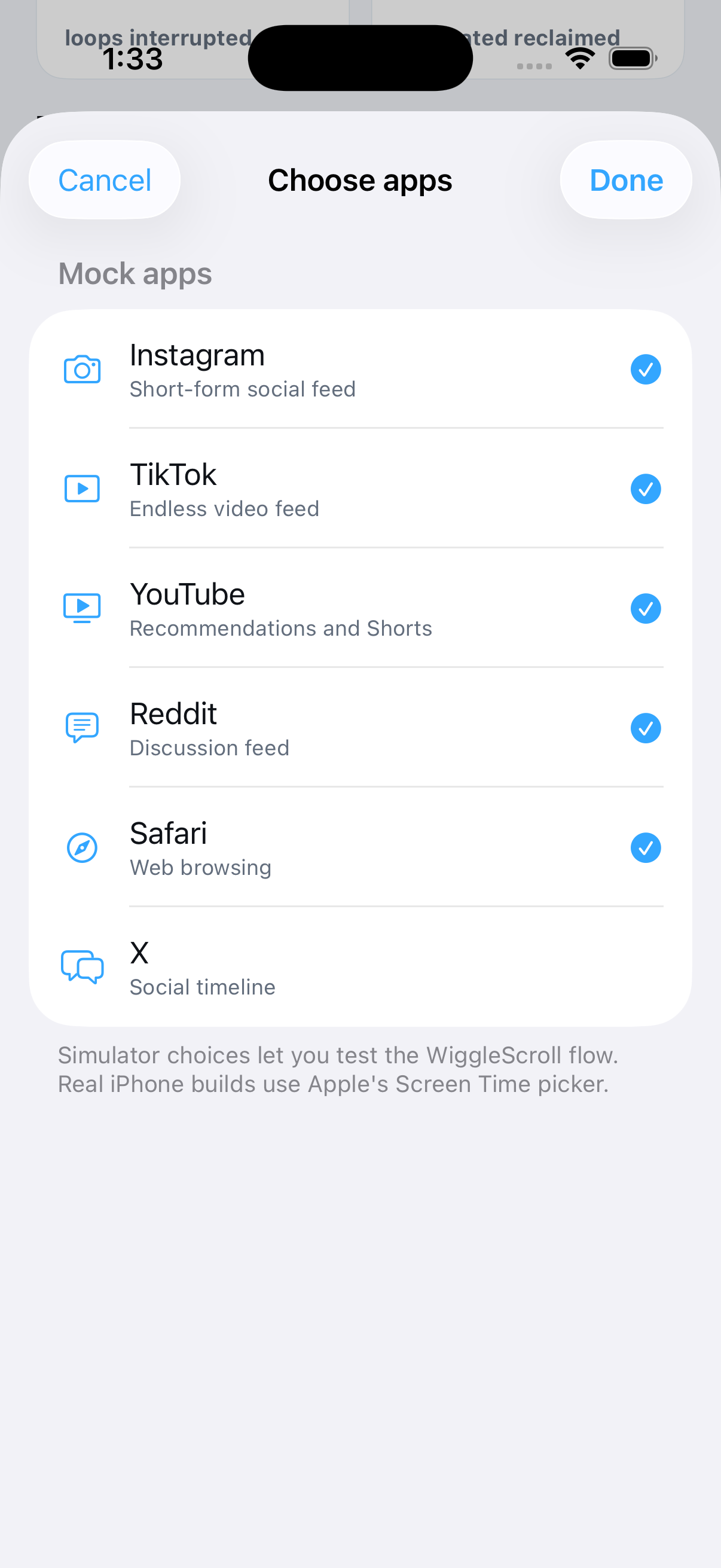
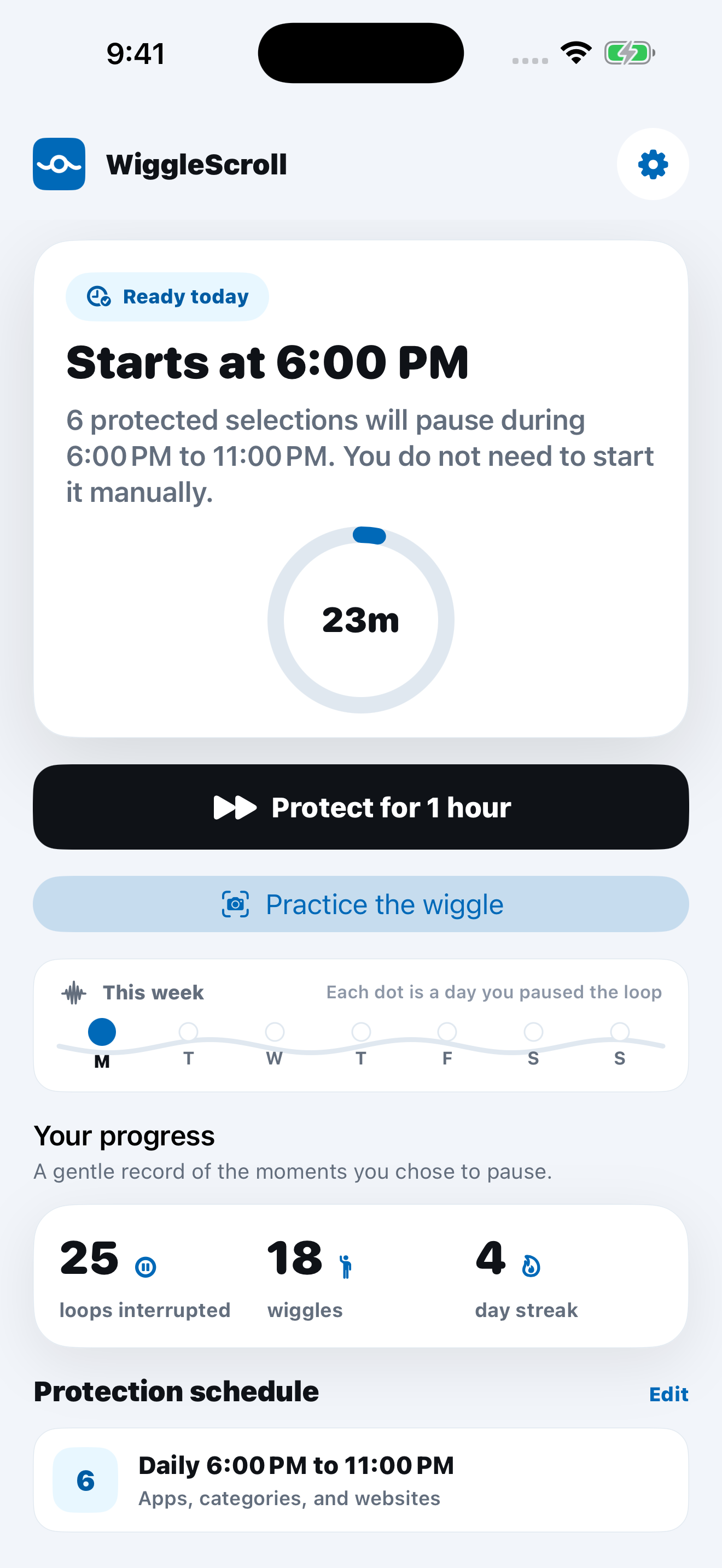
Use Apple's Screen Time picker to choose apps, categories, or websites. Set a daily window, or start protection manually when you want it.
 WiggleScroll
A kinder interruption for iPhone
WiggleScroll
A kinder interruption for iPhone
Choose and protect the apps that pull you in for free. WiggleScroll+ adds an up-to-six-second movement check that opens them for a timed break without ending protection.
Not a lecture. Not a trap. Just one small beat between impulse and choice.
Use Apple's Screen Time picker to choose apps, categories, or websites. Set a daily window, or start protection manually when you want it.
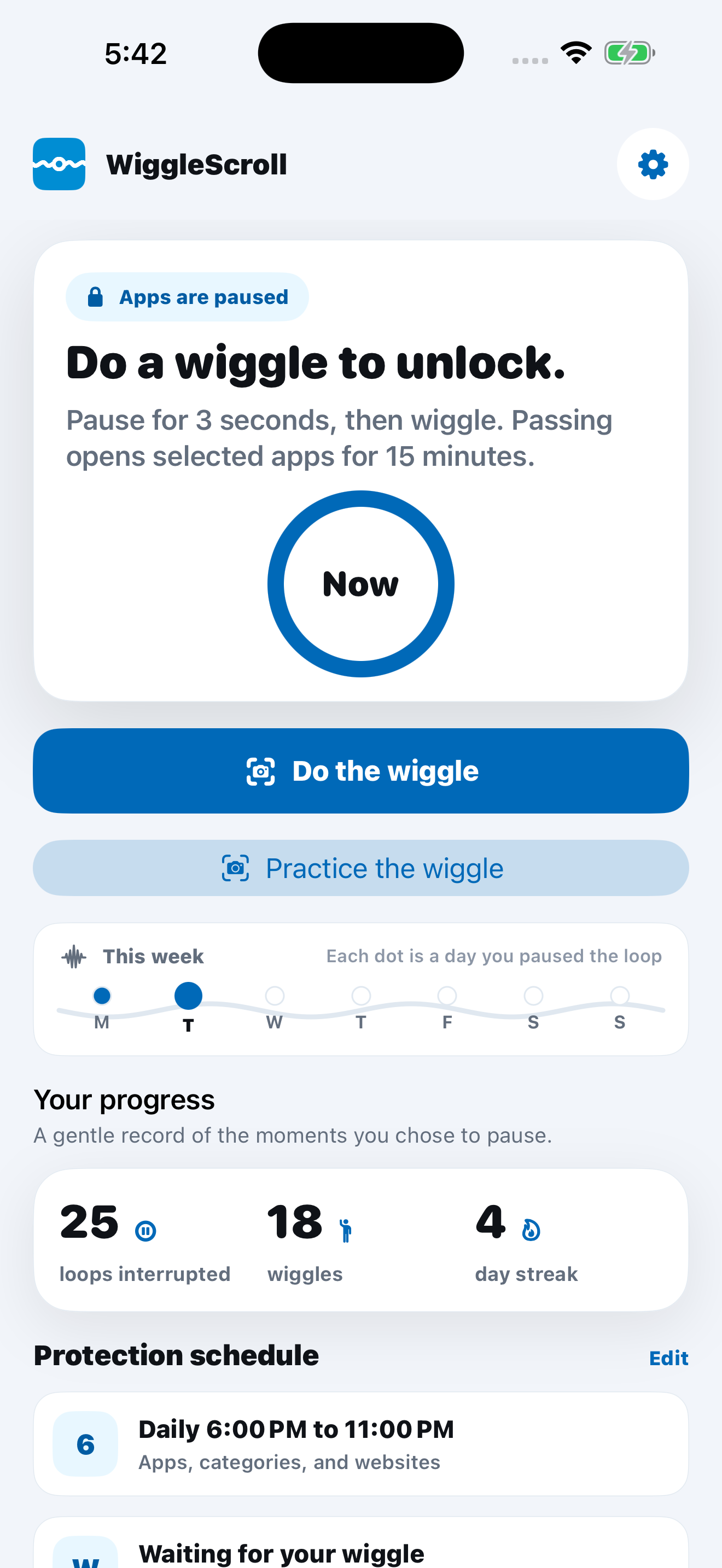
When a protected app pulls you back, WiggleScroll explains the next step: open WiggleScroll, use a WiggleScroll+ timed wiggle unlock, or stop the free protection session.
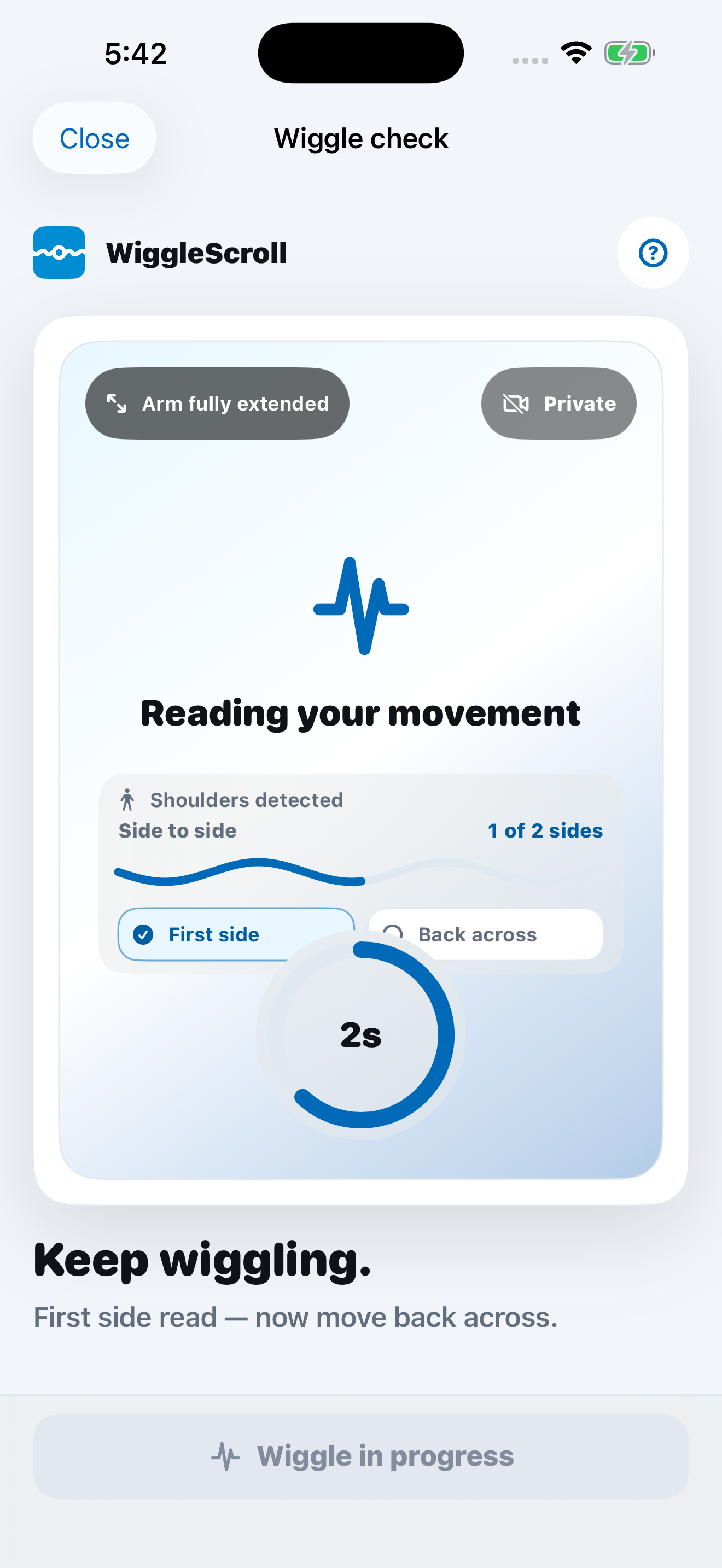
With WiggleScroll+, hold your phone at full arm's length so your head, shoulders, and upper body are visible. The front camera estimates side-to-side motion live on your iPhone. Complete the wiggle and your selected apps open for the time you chose.
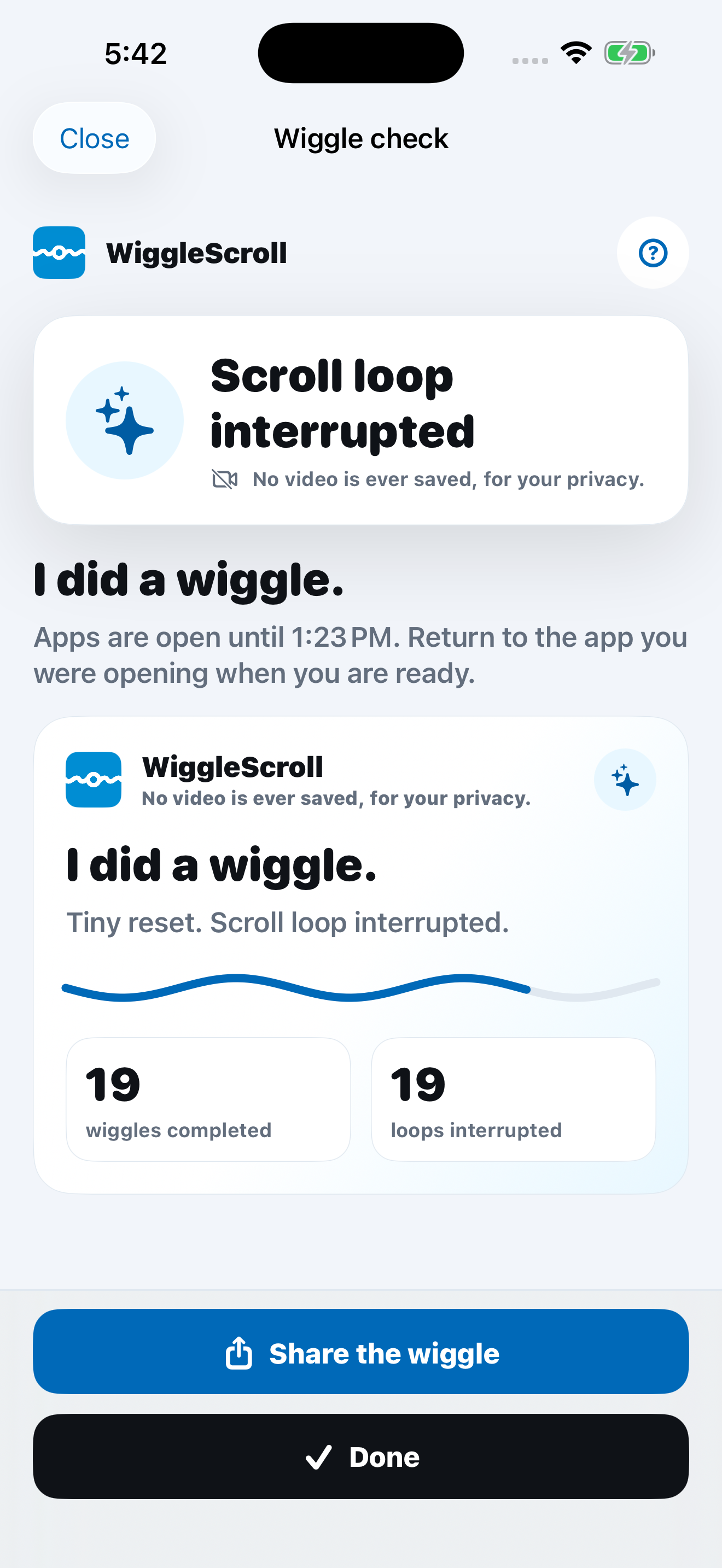
WiggleScroll does not save or upload video, requires no account, shows no ads, and does not track you across apps or websites. Apple processes payments; RevenueCat verifies anonymous subscription access; Sentry receives privacy-minimized crash and handled-error reports so reliability problems can be fixed.
No. Camera frames are analyzed live for movement. WiggleScroll does not save, upload, or share photos or video.
Yes. Complete the brief wiggle, pause the current daily window, stop the current session, or turn protection off. The app always explains the consequence before it acts.
If the protection session is still active, your selected apps pause again automatically. If the session or daily window ended, they stay open.
Protection setup, scheduling, starting, and stopping are free. WiggleScroll+ adds timed camera-wiggle unlocks. Available prices and offers appear in the app, and Apple shows the exact terms before you confirm.